
Quick Tip: Use Puppet Warp in Photoshop CS5
to Tweak Your Images
Final Product What You'll Be Creating
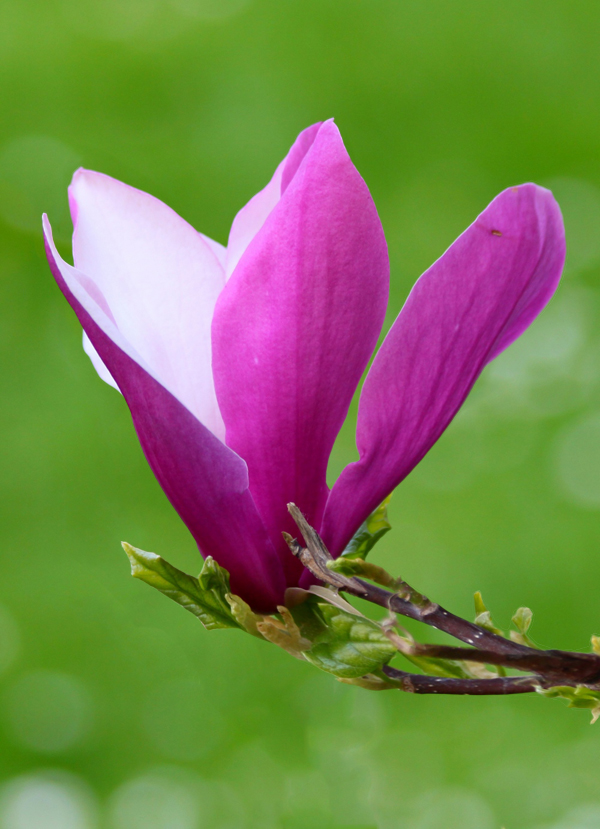
Photoshop CS5′s new Puppet Warp feature can be extremely useful if you need
to make minor adjustments to your photos. In today’s quick tip tutorial we
will demonstrate how to correct a Photo with this new tool in minutes. Let’s
get started!
Step 1
First, let’s load our image. I have selected this
stock image.

Step 2
Create a selection around the object. The selection needs to be fairly
accurate but we will use the refine edge tool to fix the selection just in
case, later on. So using the Pen Tool (P) trace the path around the object
as best as you can, making sure you finish where you started creating a
single loop.


Step 3
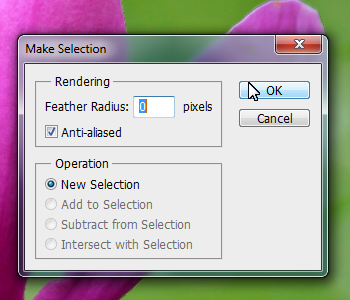
With the pen tool still selected, right click the path and click "Make
Selection". This will now load the path as a selection. Enter the value 0
for feather radius and select ok.

Step 4
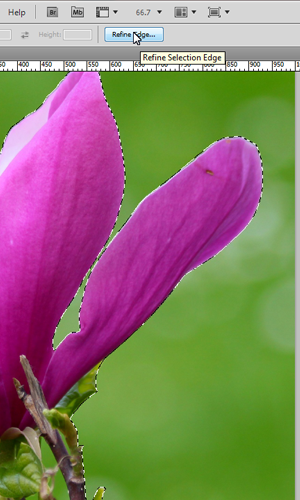
With the selection still active, click on the Marquee Tool (M) and under
the options for the tool, click the button for "Refine Edge". This tool
allows us to refine and fix the selection as best as possible. Feel free to
experiment with the settings to find the best selection for the object if
needed. Once you have made your selection, change the output from
"Selection" to "New Layer with Mask".

Step 5
We now have two separate layers, one with just the flower and the
original. We now need to delete the flower from the original background
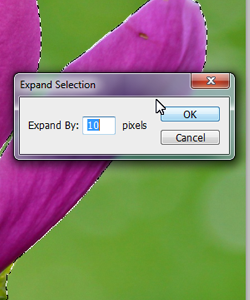
image. To do this, load the original selection again (Cmd/Ctrl + Click
Masked Layer icon) and use CS5′s new content aware fill to delete the area.
For best results, expand the selection by going to Selection > Modify >
Expand, Expand by 10px and click ok. Now press Delete on the original layer
and select content Aware Fill.


Step 6
Sometimes Photoshop won’t get it right the first time and may leave some
contrasting lines. To fix this, we can use the Spot Healing Brush Tool (J)
using some content aware settings and simply paint over the lines to blend
them in.

Step 7
We can now very easily apply the puppet warp tool without destroying or
distorting the background. With our masked layer selected, go to Edit >
Puppet Warp. This will open the tool and allow us to manipulate and warp the
object. Placing points systematically around the displayed mesh will create
bending/warping points. Place them on your object in the best arrangement to
create joints to bend as shown below.

Step 8
Dragging or rotating these points (Alt + Click and move over point) will
warp the object in the desired direction. Using this we can drag the stem of
the flower to come from the side, while still allowing the flower to stay
upright.


Final Image
And that’s how you use the Puppet Warp Tool. I hope you enjoyed this
tutorial!

No comments:
Post a Comment