Urdu Roman to English Dictionary
.

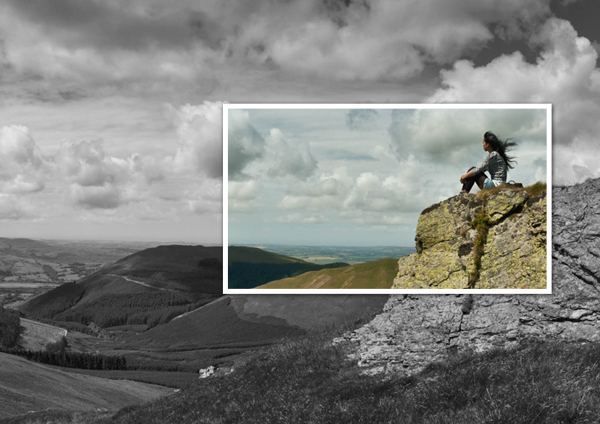
Are you new to Photoshop? Have you been trying to teach yourself the
basics of Photoshop but have found the amount of educational material
available on the net a bit overwhelming? As the world’s #1 Photoshop site,
we’ve published a lot of tutorials. So many, in fact, that we understand how
overwhelming our site may be to those of you who may be brand new to
Photoshop. This tutorial is part of a 25-part video series demonstrating
everything you will need to know to start working in Photoshop.
Photoshop Basix, by Adobe Certified Expert and Instructor, Martin
Perhiniak includes 25 short video tutorials, around 5 – 10 minutes in length
that will teach you all the fundamentals of working with Photoshop. Today’s
tutorial, Part 12: The Answer to All Your Problems: Masking
will explain how to save selections as layer masks and refine them using the
brush tool. Let’s get started!
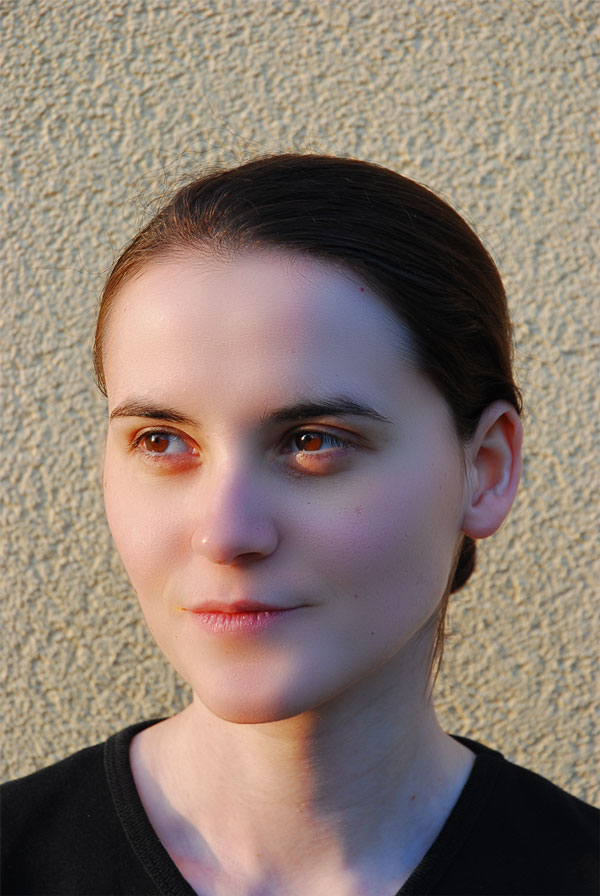
Take a look at the final image that we will be creating.
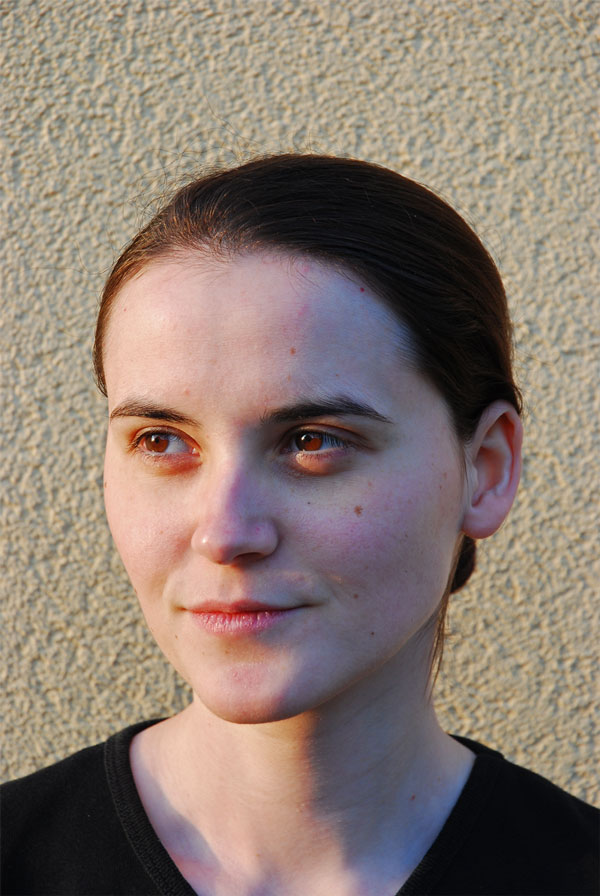
Before we begin, let’s take a look at the original image.
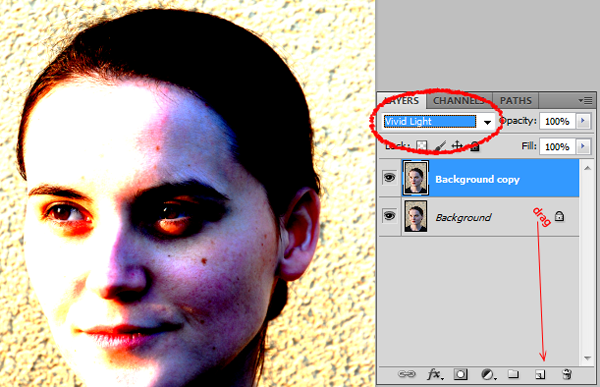
First, open your image and duplicate your background layer. Simply drag
the layer onto the new layer icon in the bottom right of the layer palette.
Now set the blending mode of this newly created layer to "Vivid Light."
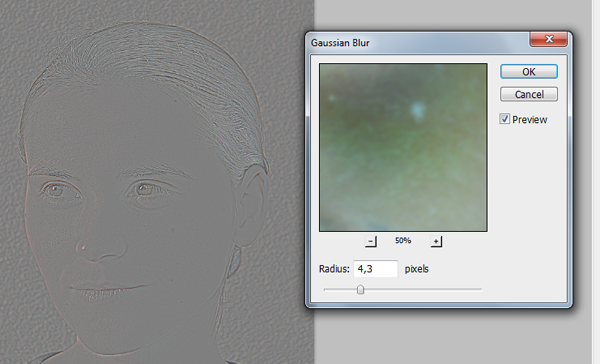
Now, let’s invert this layer. Do this by pressing Cmd + I or Image >
Adjustments > Invert. Then, apply a Gaussian Blur by selecting Filter > Blur
> Gaussian Blur. Applying a blur filter to an inverted picture will make it
look shaper. Use the slider until you can see the pores on her face.
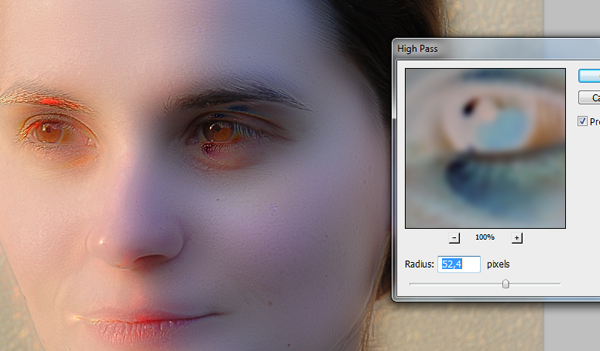
Now let smooth the skin! Go to Filter > Other >High Pass. Move the slider
until you are happy with the smoothing. You may notice some ghosting and
other weird stuff around the eyes – just ignore it for now. Concentrate on
the cheeks, forehead and nose.
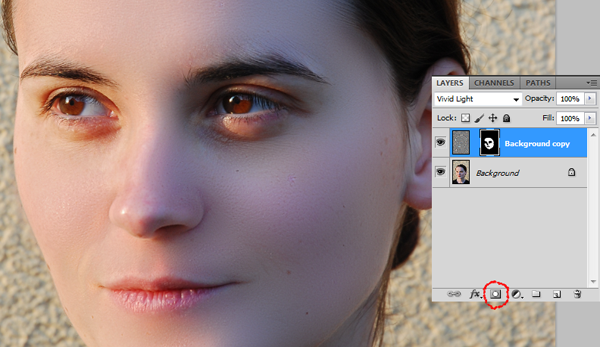
Almost done! Create a new mask for the layer and fill it with black to
hide the image. Switch your color to white, select the mask and start
drawing on the skin with a soft brush. Start at the cheeks, move over to the
forehead, the nose and stop on the chin. If the effect is too strong for
your liking, just lover the opacity of the brush and you’re good to go!
We’re finished! I hope that you learned a few new techniques here. If you
have a different approach, let me know in the comments!

Creating a set of scattered Polaroids in perspective might be easier than
you think. Today, we will demonstrate the process in this quick tip
tutorial. Let’s get started!
Create a new document, 2500 x 1850 px and paste the
wood texture onto the canvas. If you decide to use another texture make
sure that your canvas is the same size as your texture. Rename the texture
layer "WoodBG."

Create a new layer, using the rectangle marquee tool, draw a rectangle
with the dimensions 400 x 480 px and fill it with white. Rename this layer
"Polaroid.Bg."

Double click “Polaroid.Bg” and apply the following layer styles:

Using the Rectangle tool draw a black rectangle inside the white base as
shown, rename this layer “Polaroid.Pic.”

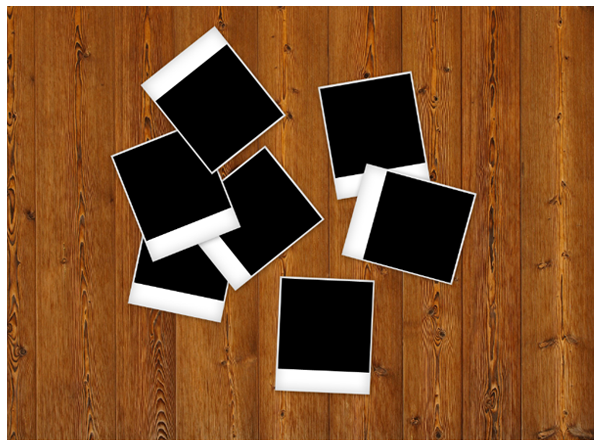
Now comes the fun part, put these layers into a folder and name it “P1”
then duplicate the folder and move the new Polaroid around and rotate it
(Cmd/Ctrl + T and hover over the corner and rotate). Try not to rescale the
Polaroid as they are all the same size. Repeat this until you are happy and
have a nice spread of Polaroid’s (I generally use about 6-7).
Now that we have our Polaroid’s laid out, we need to import our image.
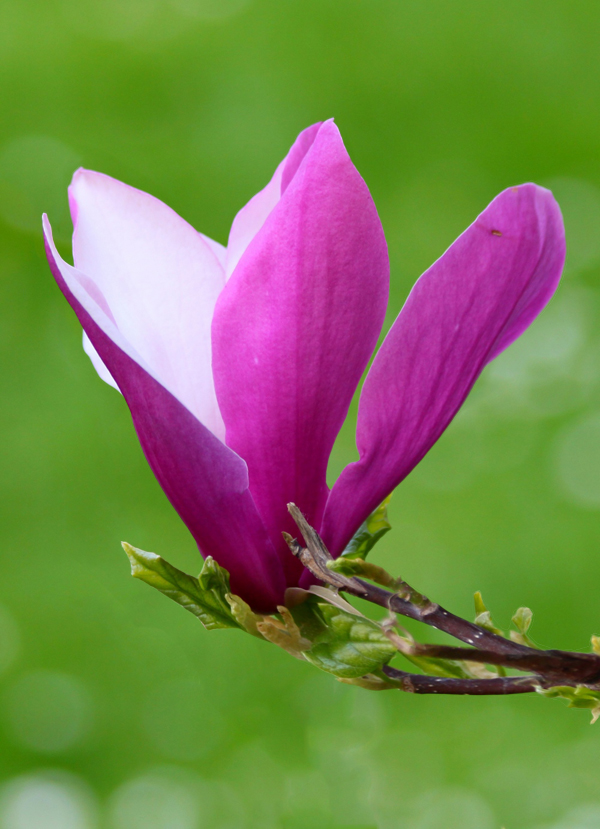
This can be anything you want. For this example, I will be using a
flower. Import the image into Photoshop and hide the layer. Here comes
the tricky bit, we need to select all the black on the canvas (apart from
the black in the picture which is why you hid it). Go to Select > Colour
Range and click on the black part of one of your Polaroids. This will create
a matte and select all the black on the canvas as seen below. Then press ok.

Next, click on the Photo layer and press Cmd/Ctrl + Shift + I to invert
your current selection and press delete followed by Cmd/Ctrl + D to
deselect. Unhide the layer and now you should have something which looks
like the following:

To make the 3D effect select all your layers (Click on the top layer hold
down shift and click on the bottom layer) then press Cmd/Ctrl + T and right
click inside the canvas and press perspective, drag out the handles at the
bottom like the following:

To remove the band at the bottom simply scale up the image (Cmd/Ctrl +
T), the final step is to hide all of your black box layers in the folders,
simply go through each one and hide them.

In my particular case , I decided to apply a vintage effect to all the
photos in a folder on my machine. So the first step is to open a folder with
all the photos you want to apply an effect to.

Next, choose a random photograph and open it in Photoshop.

To apply the same effect to all the photos you will need to create an
action. Go to the actions panel and press the New Action button. Name it
Action 1.

Press record.

In this step I will detail all the steps I took to apply a vintage effect
to my images but you should feel free to apply any effects that you see fit,
depending on your project. Keep in mind that you are recording so every step
you take from this moment on will be recorded until you press the Stop
button.
Apply an Adjustment Layer > Hue/Saturation.

Go to Filter > Blur > Gaussian Blur: 4 px. Layer Blending Mode: Soft
Light. Opacity: 70%.

Go to Image > Adjustments > Variations (2 clicks on more cyan ). Blending
mode: Overlay. Opacity: 80%.

Go to Filter > Other > High pass: 3 px. Layer Blending Mode: Soft Light.

Go to Adjustment Layer > Gradient Map. Opacity: 60%.

Go to Adjustment Layer > Photo Filter: 15%.

Now let’s save our work as a JPEG. This is very important because it
needs to be recorded as an action. Name it as Copy as shown below.

Next, close the document. When prompted to save the changes in a PSD,
select No. This is necessary because otherwise Photoshop will ask you the
same question for all your photos.

Now the action is ready. Press the Stop button.

Go to File > Automate > Batch. Select Action 1, go to Source and select
the folder in which your photos are located. Check Suppress File Open
Options Dialog and press Ok.

Sit back and watch as Photoshop does all the work for.

That’s it! We’re finished! Hope you learned something new!